This article explains how to print posters & table talkers for our bi-monthly in-store promotions.
Before you start
You need to ensure your computer is connected to the Admin WiFi network at Alowishus Bundaberg or use a computer that already is and which can print to the TOSHIBA laser printer located near Tracey’s office.
Printing Posters
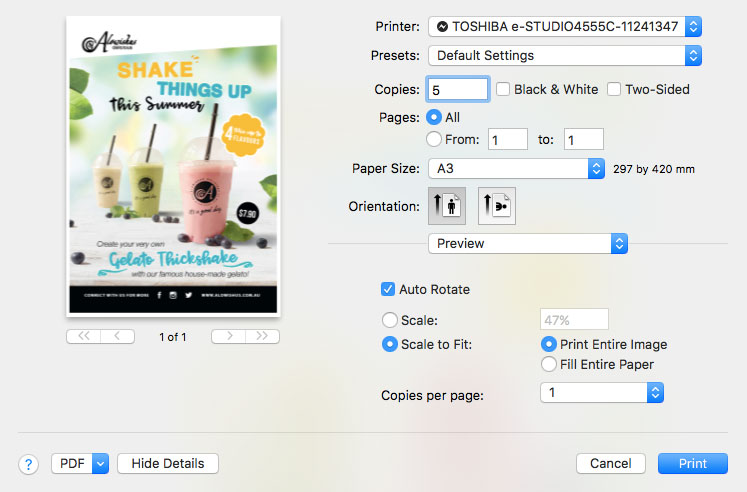
The posters need to be printed on A3 paper. We have 5 poster frames throughout the store that will need replacing with the new promotion.
Open the poster file in preview. Then in the menu select File -> Print. Use the following printer settings:
Note: Be sure to select portrait format (vertical) as orientation. The image needs to be fitting the page (scale to fit).
Printing Table Talkers
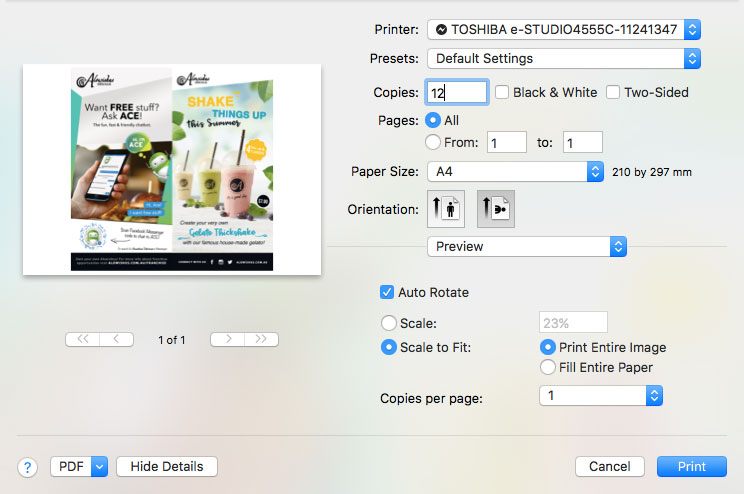
Table talkers are printed on A4 paper. There should be a table talker on EVERY table or table group INSIDE the cafe, not in the arcade or outdoors. If there aren’t enough, we usually have backup in storage, or new once will need to be ordered with office works.
Open the table talker file in preview. Then in the menu select File -> Print. Use the following printer settings:
Note: Be sure to select landscape format (horizontal) as orientation. The image needs to be centred and fitting the page (scale to fit).